

Keeping printers working on the road
A mobile receipt printer works hard in a vehicle, on a belt clip, and out in the weather. A few simple routines help drivers and field teams avoid blank slips, flat batteries and paper jams during the working day.
Start with the right daily routine
Most printer problems on the road come from small things that build up over time: low battery, dusty paper bays, loose charging leads, or the wrong roll fitted in a hurry. For drivers and field sales teams, a short start of shift check is usually enough to prevent lost time later. If the unit is shared between vehicles, make one operator responsible for checking it in and out so faults are noticed early.
Before leaving the yard, confirm the printer is paired to the correct phone or handheld device, that the paper feeds cleanly and that the battery has enough charge for the route. It sounds basic, but this quick habit saves plenty of call-backs and reprints when the day gets busy.
- Check battery level before the first stop.
- Print a quick test receipt to confirm pairing and paper feed.
- Make sure the correct paper width is loaded.
- Inspect the charging port and cable for damage.
- Confirm belt clip, carry case or vehicle mount is secure.
Manage heat inside the vehicle
Heat is one of the biggest causes of battery strain and faded thermal output. A printer left on the dashboard or locked in a van can get far hotter than the outside air, especially in Gauteng summer traffic. Thermal paper also suffers in high heat, which can lead to darkened rolls or receipts that look grey before printing.
Keep the unit out of direct sun and avoid storing spare rolls near the windscreen. If the printer feels very hot, let it cool in the shade before charging or printing a batch of slips. Trying to force it through a heavy run while overheated can shorten battery life and may trigger temporary shut-down protection.
- Do not leave the printer on the dashboard.
- Store spare rolls in a shaded bag or closed compartment.
- Let a hot printer cool before putting it on charge.
- Use a carry case when moving between vehicle and customer site.
- Check print darkness if receipts start looking pale after heat exposure.
Keep dust, grit and paper debris under control
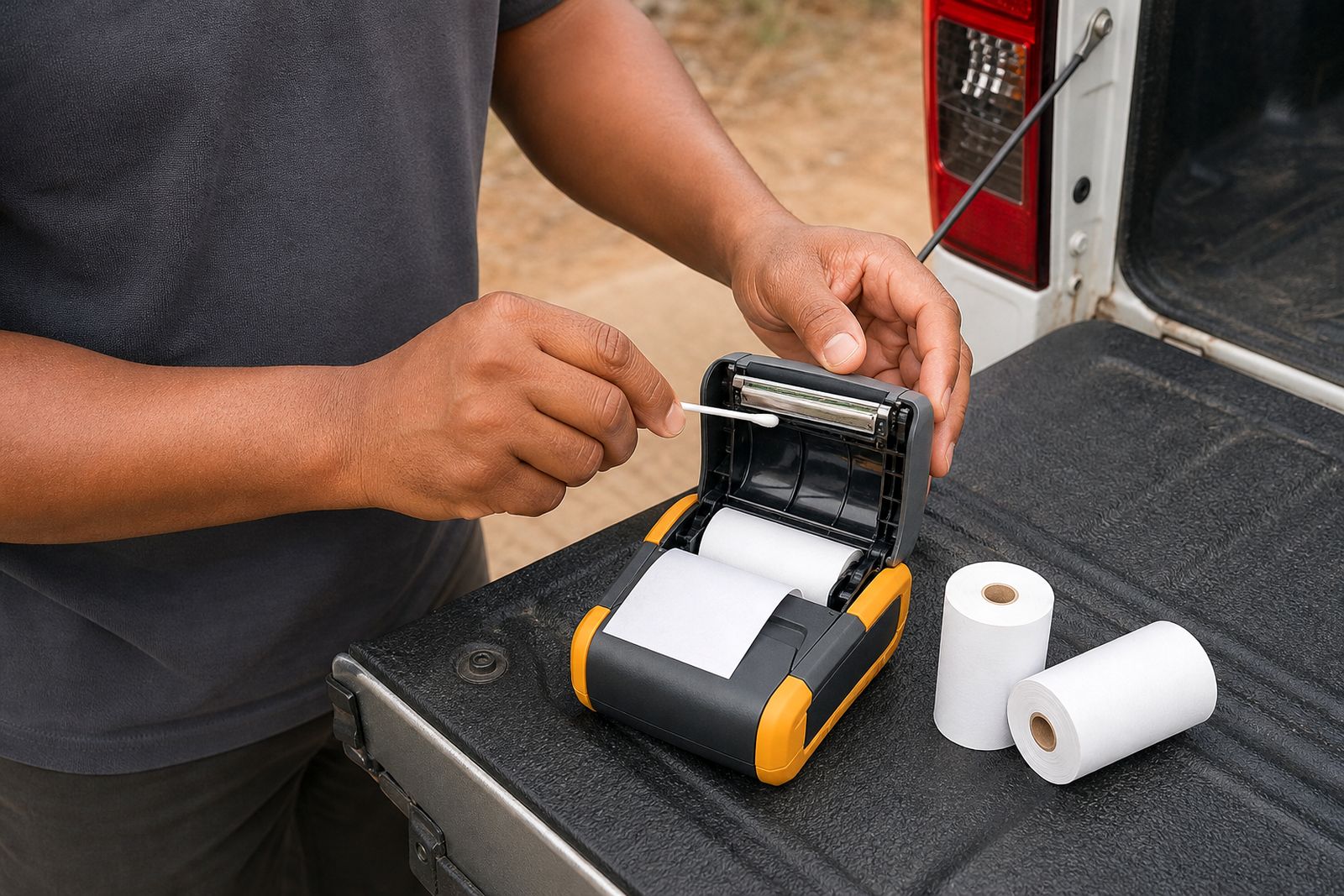
Roadside work, warehouse loading zones and open vehicle doors all bring dust into the printer. Fine grit can settle around the paper path and latch area, while loose paper dust builds up around the print head and roller. The result is often uneven feeding, skew printing, or a cover that does not close properly.
Cleaning does not need special workshop time. A careful wipe at the end of the route and a more thorough check every week usually keeps things in order. Do not use excessive liquid, and never scrape the print head with metal or a sharp object. Thats where lasting damage starts.
If your team works in mining supply, agriculture, construction, or roadside delivery, increase the cleaning frequency. Coastal operators should also watch for moisture mixing with dust, which can leave a sticky film inside the paper compartment.
Charge correctly on the road and at base
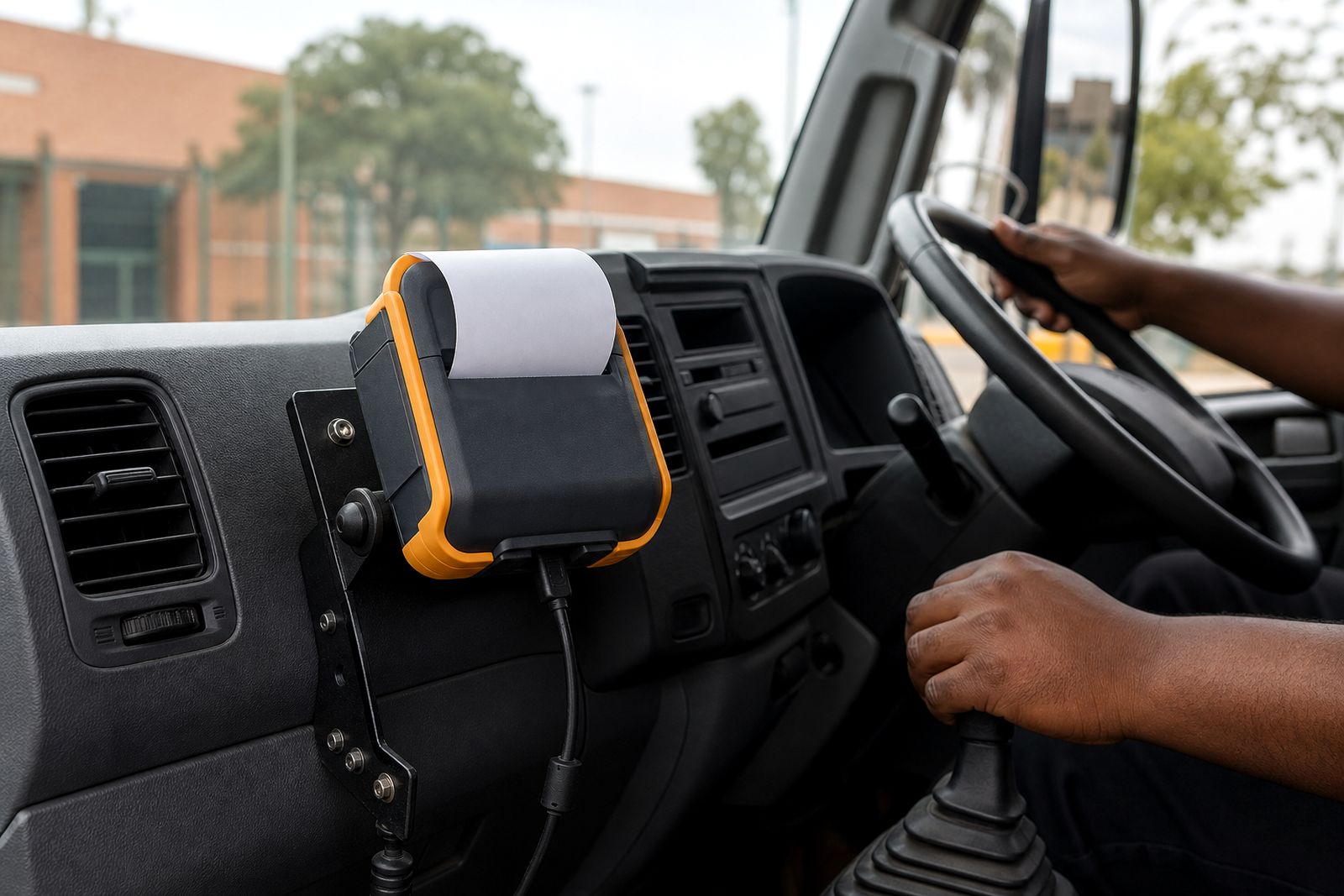
Charging habits make a big difference to printer uptime. Vehicle chargers are useful, but only when the lead is secured and the socket is in good condition. A loose plug in a bakkie or van can interrupt charging all day without the driver noticing. At base in Midrand or at a regional depot, it helps to have a simple charging station where each unit is put back in the same place after shift end.
Avoid pulling the cable out by the wire, and do not force connectors if they feel misaligned. If the battery drains unusually fast, first check whether the printer has been trying to hold a weak Bluetooth connection for hours, or whether cold mornings and hot afternoons are putting extra strain on the battery.
- Use the correct charger type for the printer model.
- Secure vehicle leads so they do not pull loose over speed humps and rough roads.
- Charge fully before long routes with many stops.
- Do not leave damaged cables in circulation.
- Rotate shared units so one battery is not overused every day.
Load paper properly and store spare rolls well
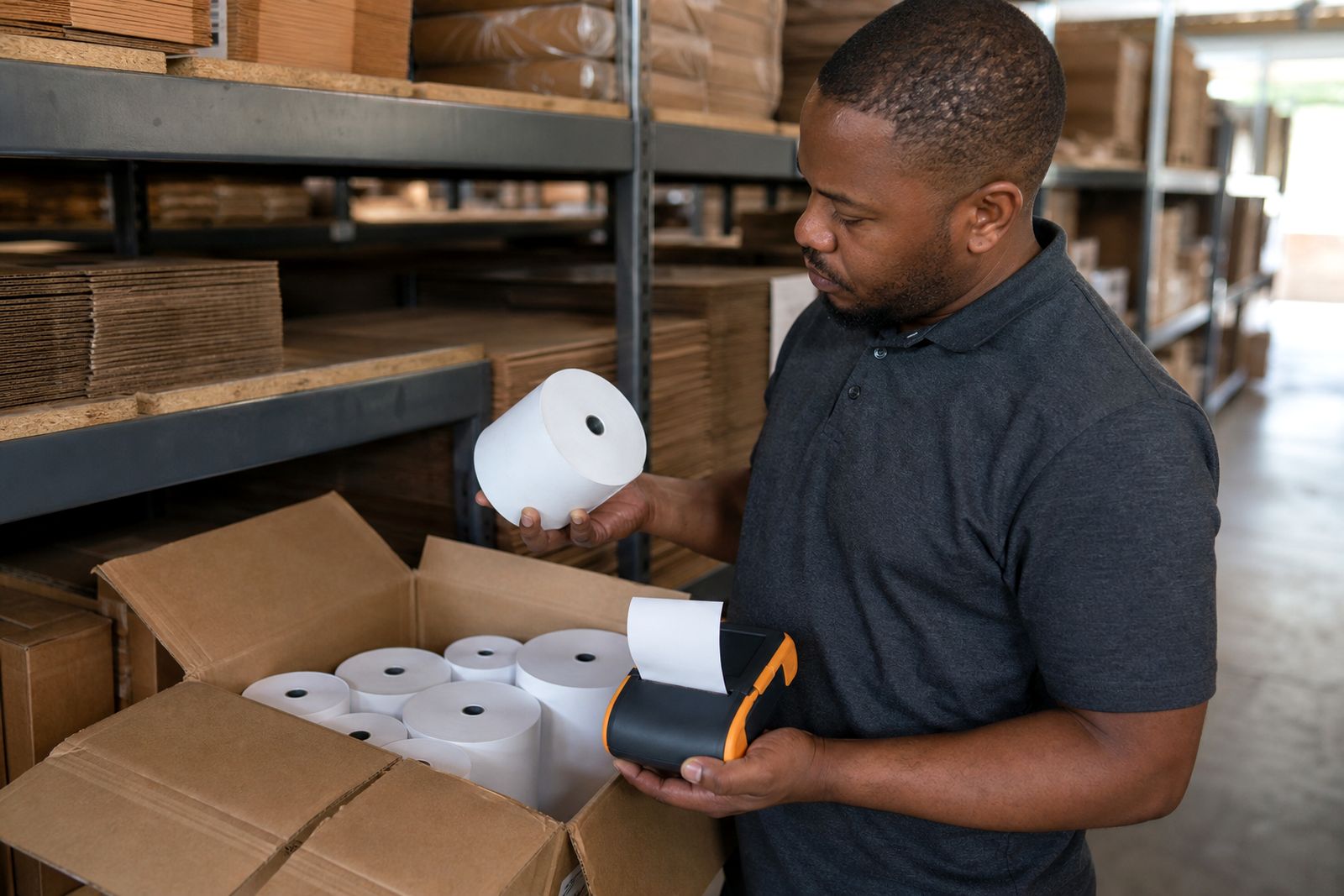
Incorrect paper loading is still one of the most common call-out issues. Make sure the roll is the correct width and is sitting square in the bay, with the paper feeding in the right direction. Forcing the cover shut on a misaligned roll can crease the edge and lead to jams at the first or second print.
Thermal paper should be kept dry, clean and away from direct heat. Do not store spare rolls loose on the vehicle floor where they pick up grit, or in the same compartment as oils, cleaners or wet cloths. Receipts can fade early if the rolls have been exposed to heat or chemical vapours.
- Use the paper width the printer is set up for.
- Load the roll squarely and leave a short tail for easy feed.
- Close the lid gently, never slam it shut.
- Keep spare rolls in a sealed bag or carry case.
- Discard rolls that are dirty, damp or darkened.
Use a simple weekly inspection checklist
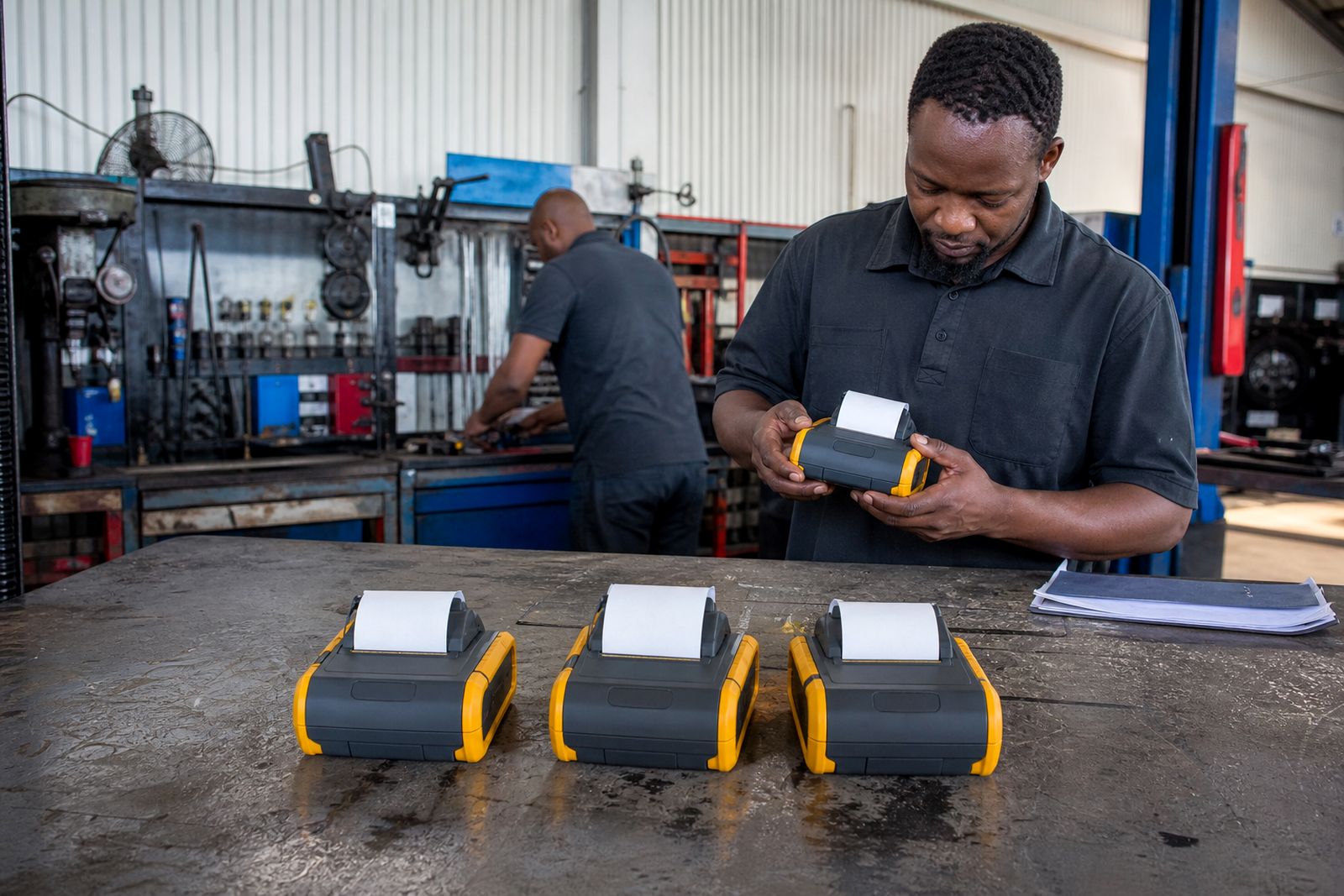
A short weekly check helps catch wear before it becomes downtime on route. This is especially useful for courier fleets, route sellers, parking teams and inspection staff who rely on mobile printing at every stop. The operator can do most of it in a few minutes, and any repeated issue can then be escalated for replacement parts or a settings check.
Look at the latch, hinges, charging port, belt clip points and the condition of the case or mount. Print quality tells its own story: faded edges, missing lines or noisy feeding usually mean the printer needs cleaning, better paper handling, or a battery and charger check. Keep a written checklist in the vehicle file or stores area so the team does not rely on memory alone, it helps more than people expect.
- Clean the outside housing and paper bay.
- Check for cracks, loose covers or bent latches.
- Test Bluetooth or USB connection with the normal device.
- Print a sample receipt and inspect the full width.
- Confirm charger, mount, clip and case are all still serviceable.
If you are unsure whether a printer, charger or mount suits your device setup, paper width or vehicle use, send us the details through the enquiry form on our contact page. We can help you match the printer and accessories to the job without wasting time on the wrong setup.
What our Mobile Receipt Printers customers say
Verified Google reviews
Questions we get asked
How often should a mobile receipt printer be cleaned?
For normal delivery and field sales use, wipe the exterior and check the paper bay daily, then do a more careful clean each week. In dusty areas or open vehicle work, clean it more often.
Why do receipts come out faint after a hot day in the vehicle?
Excess heat affects both the printer and the thermal paper. Move the unit out of direct sun, let it cool, and check whether the spare rolls have been stored in a hot compartment.
Can you help us choose the right charger, mount or paper width?
Yes. We supply mobile receipt printers, vehicle chargers, mounts, clips, cases and thermal paper rolls, and we help customers match the printer to the device and required paper width.
Also worth a look

Tell us about the job
Send sizes, materials and where you are through our contact form, and we will come back with the practical options.
Open the contact form